Utilities
Rotate
The Rotate utility allows you to apply rotation transformations to your UI elements, making it possible to dynamically adjust their orientation.
Utility Class | USS Properties |
|---|---|
| rotate-0 | --zb-rotate: 0; |
| rotate-1 | --zb-rotate: 1deg; |
| rotate-2 | --zb-rotate: 2deg; |
| rotate-3 | --zb-rotate: 3deg; |
| rotate-6 | --zb-rotate: 6deg; |
| rotate-12 | --zb-rotate: 12deg; |
| rotate-45 | --zb-rotate: 45deg; |
| rotate-90 | --zb-rotate: 90deg; |
| rotate-180 | --zb-rotate: 180deg; |
| rotate-none | --zb-rotate: none; |
| rotate-minus-1 | --zb-rotate: -1deg; |
| rotate-minus-2 | --zb-rotate: -2deg; |
| rotate-minus-3 | --zb-rotate: -3deg; |
| rotate-minus-6 | --zb-rotate: -6deg; |
| rotate-minus-12 | --zb-rotate: -12deg; |
| rotate-minus-45 | --zb-rotate: -45deg; |
| rotate-minus-90 | --zb-rotate: -90deg; |
| rotate-minus-180 | --zb-rotate: -180deg; |
Applying Rotation
To rotate an element, you need to add a rotate-{value} class to it.
Note
The element must also have the transform utility applied for the rotation effect to take place.
Basic Rotation
Set the rotation to a specific degree with rotate-{degree} classes.
<ui:VisualElement class="transform rotate-45">
  <!-- Element rotated 45 degrees clockwise -->
</ui:VisualElement>
Negative Rotation
Apply a negative rotation to rotate the element counterclockwise using rotate-minus-{degree} classes.
<ui:VisualElement class="transform rotate-minus-30">
  <!-- Element rotated 30 degrees counterclockwise -->
</ui:VisualElement>
Removing Rotation
To remove rotation from an element, use the rotate-none class.
<ui:VisualElement class="transform rotate-none">
  <!-- Element with no rotation transformation -->
</ui:VisualElement>
Customize
Modifier Variations
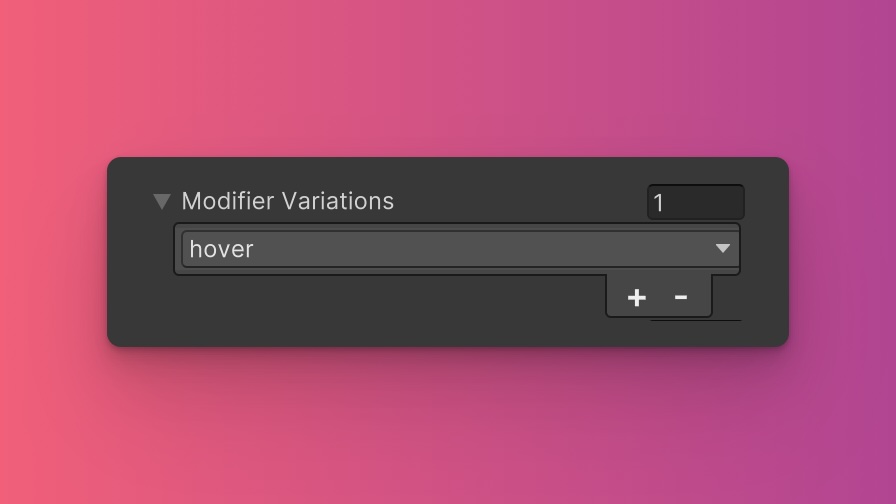
You can customize which modifier variations of the Rotate utility are generated, such as pseudo-classes (e.g., hover, focus) and custom modifiers.
Rotate utility by default:- hover
- focus
By fine-tuning the utility variations, you maintain control over your stylesheet's size and complexity, ensuring that only necessary styles are included. To update these values:
- Open the Theme Config Asset: Find the asset within your Unity project.
- Navigate to the 'Utilities' Section: Locate the
Rotateutility. - Adjust Modifier Variations: Select which modifiers you want to be generated for the utility. Keep in mind that the order of the modifiers will affect the order and specificity of the generated USS classes.
Class Tags and Properties
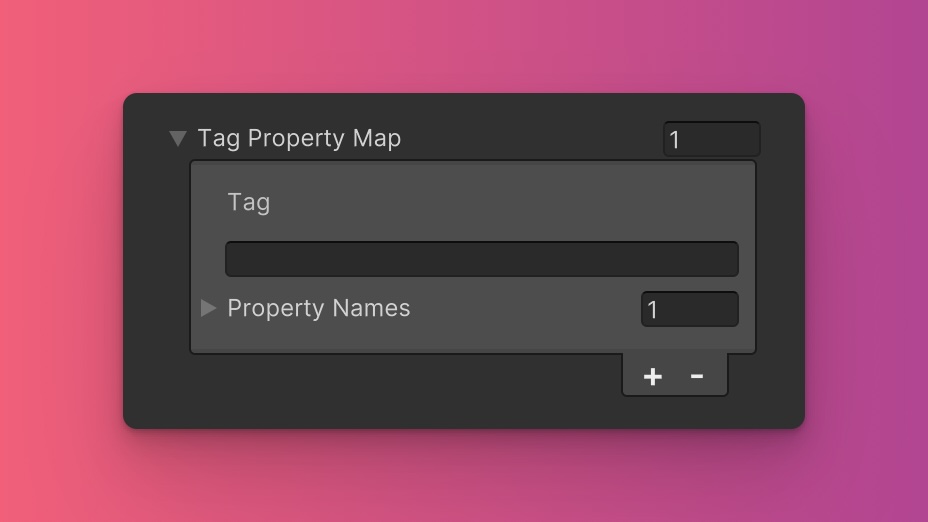
The Rotate utility generates classes based on predefined tags and their associated USS properties. While we recommend keeping these defaults for consistency and ease of reference in our documentation, you have the option to customize them to suit your project's specific needs.
These values are prepended to the defined values in this format tag-{value}. If a tag is empty, the generated class will simply be the value by itself.
Here are the default tags and the USS properties they set for the Rotate utility:
- rotate : --zb-rotate
To customize these tags and properties, you can edit the Tag Property Map field for the Rotate utility in the Theme Config asset. This allows you to define new tags or modify existing ones, thus tailoring the generated classes to your preferences.
Extending Core Fields
The Rotate utility does not extend any fields from the Core section of the Theme Config asset. Before you try to extend any fields, we recommend checking Unity's documentation to verify which types of values are expected by the relevant USS properties.
To customize or define these extended fields:
- Open the Theme Config Asset: Locate the asset within your Unity project.
- Navigate to the 'Utilities' Section: Find the
Rotateutility. - Customize Extend Fields: Modify or add fields in the
Extend Fieldsarray to change the core configuration values that are extended. You'll only be able to extend fields of the same type.
Disable Utility
The Rotate utility is enabled by default. You can disable it by unchecking the Enabled option in the Theme Config asset. This will prevent the generation of the utility's styles.